





💻 Securing Los Santos: A Definitive How-To Guide for Legally Downloading and Installing GTA V
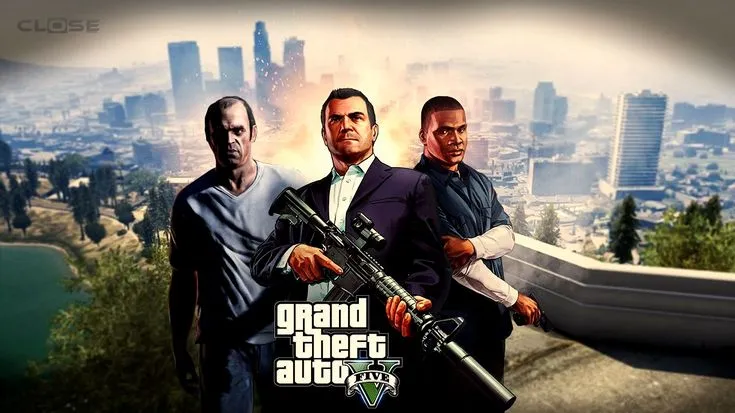
Grand Theft Auto V (GTA V) remains an enduring cultural and gaming phenomenon, continually updated across multiple console generations and PC platforms. Acquiring and installing this massive title is the crucial first step to experiencing the complex narrative of Michael, Franklin, and Trevor, and diving into the massive, ever-evolving world of GTA Online. While the process is standardized across digital distribution channels, ensuring a smooth, secure, and problem-free download requires proper preparation, platform-specific knowledge, and adherence to system requirements.
This definitive guide provides the expert methodology for purchasing, downloading, and successfully installing GTA V on the major platforms—PC, PlayStation, and Xbox—ensuring you are ready to hit the streets of Los Santos with maximum efficiency.
🛠️ Phase I: Preparation and Pre-Purchase Requirements
Before initiating any purchase or download, a successful installation depends on adequate system preparation and verification.
1. Verifying System Compatibility and Storage Space
GTA V is a large game, and ensuring your hardware meets the minimum requirements is essential for a stable gaming experience. This is especially critical for PC users.
PC System Requirements Check (Minimum)
Even the minimum requirements demand a robust system. Failure to meet these specs will result in poor frame rates, slow load times, and potential crashing.
- Operating System: Windows 10 64 Bit or Windows 8.1 64 Bit or Windows 8 64 Bit or Windows 7 64 Bit Service Pack 1.
- Processor: Intel Core 2 Quad CPU Q6600 @ 2.40GHz (4 CPUs) / AMD Phenom 9850 Quad-Core Processor (4 CPUs) @ 2.5GHz.
- Memory (RAM): 4 GB.
- Storage Space: At least 110 GB of free hard-disk space is required for the full installation, including updates.
2. Choosing Your Digital Distribution Platform
GTA V is sold through various authorized digital storefronts. Your choice determines the client you will use for the download and future updates.
- PC Options: The primary legal platforms are Steam, the Epic Games Store, and the Rockstar Games Launcher. Steam is often preferred for its robust community features, while the Epic Games Store frequently offers the game for free or at significant discounts.
- Console Options: The only authorized digital storefronts are the PlayStation Store (PS4/PS5) and the Microsoft Store (Xbox One/Series X|S). Ensure your console's profile is linked to a valid payment method before proceeding.
Pros of Digital Download:
- Convenience: Immediate access to the game; no physical discs required.
- Automatic Updates: Clients manage patching and updates automatically.
Cons of Digital Download:
- Large File Size: Requires significant internet bandwidth and storage space.
- Platform Lock: The game is tied to the purchasing account (Steam, PSN, etc.).
💳 Phase II: Secure Purchase and Transaction
This stage involves acquiring the license for the game and preparing the download client.
3. The Purchase Process: Transaction Security
Regardless of the platform, the purchase process follows a secure, standardized procedure. Always verify the platform's security indicators (SSL certificate, etc.).
- Account Verification: Log into your chosen account (Steam, Epic, PlayStation Network, or Xbox Live).
- Edition Selection: GTA V often comes in different editions (e.g., Premium Edition, Expanded & Enhanced). The Premium Edition is recommended as it usually includes the base game and the Criminal Enterprise Starter Pack for GTA Online.
- Checkout: Add the game to your cart, proceed to checkout, and confirm the transaction using your saved payment details. You will receive an email confirmation containing your receipt and license information.
4. Initiating the Download Client
The download will be managed through the respective platform's launcher or console interface. Ensure the client is fully updated.
- PC Client Preparation: Launch the Steam client, Epic Games Launcher, or Rockstar Games Launcher. Navigate to your Library and locate Grand Theft Auto V. The download option should now be available.
- Console Preparation: On your PlayStation or Xbox console, navigate to your Library or Purchased Games section on the main dashboard. Locate GTA V and select the Download option.
⬇️ Phase III: The Installation and Integrity Check
Due to the file size (over $100 \text{ GB}$), the download process can take several hours depending on internet speed. Optimization is key here.
5. Optimizing Network Speed for Download
Minimize network congestion during the large download to ensure the fastest possible acquisition of the game files.
- Wired Connection: Whenever possible, use an Ethernet cable to connect your PC or console directly to your router. Wi-Fi introduces variability and potential speed loss.
- Close Background Applications: On PC, close all bandwidth-heavy applications, including streaming services (Netflix, YouTube), large file synchronization services (Dropbox, OneDrive), and other game launchers. On consoles, ensure no other games are actively updating or downloading.
- Download Time Management: Schedule the download for non-peak internet usage hours (late night or early morning).
6. Managing Disk Space and Installation Directory
The game requires the full $110 \text{ GB}$ for the complete download and installation. Ensure the selected location is prepared.
- Select an SSD (PC Users): If your PC has a Solid State Drive (SSD), always install GTA V to the SSD. This drastically reduces load times and texture pop-in, which is a major performance boost over a traditional Hard Disk Drive (HDD).
- Verify Installation Path: Ensure the selected installation directory has sufficient free space. If the client attempts to download to a full drive, the download will fail or become corrupted.
7. Post-Download Verification of Game Files
Digital downloads are generally reliable, but corrupted files can occur. A verification step ensures game stability.
- PC Verification (Steam/Epic):
- Steam: Right-click GTA V in your Library $\rightarrow$ Properties $\rightarrow$ Installed Files $\rightarrow$ Verify integrity of game files...
- Epic Games: Navigate to Library $\rightarrow$ Click the three dots next to GTA V $\rightarrow$ Verify.
- Console Verification: Consoles automatically verify the files during the installation process. If the installation fails or the game crashes upon launch, deleting the local files and re-downloading is the standard procedure.
🎮 Phase IV: Initial Launch and Online Access
Once the files are verified, the final step is launching the game and accessing the expansive GTA Online component.
8. The Rockstar Games Launcher Integration (PC Only)
PC players must navigate an extra layer of software required for license verification and game launch.
- Mandatory Installation: The Rockstar Games Launcher is required even if you purchased the game through Steam or Epic. The client should automatically prompt you to download and install this small piece of software.
- Social Club Linking: You must create or link a Rockstar Games Social Club account. This account is essential for GTA Online progress, cloud saves, and achievement tracking. Ensure your account details are secure.
9. Initial Configuration and Graphics Setup
The very first launch is the time to set your optimal display and graphical settings.
- Calibration: The game will run through initial brightness and sound calibration. Follow these prompts precisely.
- Graphics (PC): Navigate immediately to the Graphics Settings menu. Use the built-in VRAM Usage Meter to ensure you are not exceeding your graphics card's available memory. Prioritize Texture Quality and Population Density over anti-aliasing for the best balance of visual quality and performance.
10. Accessing GTA Online and the Starter Pack
The true longevity of GTA V often lies in its multiplayer counterpart. Accessing the Criminal Enterprise Starter Pack (if purchased) is vital for a strong start.
- Online Access: After completing the single-player Prologue, the game will prompt you to access GTA Online via the Character Selection Wheel or the Pause Menu.
- Starter Pack Activation: If you purchased the Premium Edition, the included vehicles, weapons, and properties (e.g., the Paleto Bay Bunker or the Great Chaparral Biker Clubhouse) will be available for free on the in-game websites (like Dynasty 8 Real Estate). Do not purchase these items—look for the $0$ price tag.